Build your first page
Build a simple SCADA page from scratch — place a sensor, show its live temperature, and view it, step by step.
ProjectsYour projectPagesA page turns your tags into a picture someone can read at a glance. This guide builds a small but realistic one from nothing: a room temperature panel — a sensor with its live temperature shown beside it. Once you’ve done this, the rest of the page editor is more of the same.
What we’re building
One page with two things on it: a sensor symbol and, next to it, a text label that reads the temperature live from a tag. We build it up in place — everything you add stays on the page — and then view the finished result.
1. Create the page
In a project, open Pages and click New to create a page. Give it a name — Room temperature — and it opens in the editor with an empty canvas.
2. Place the sensor
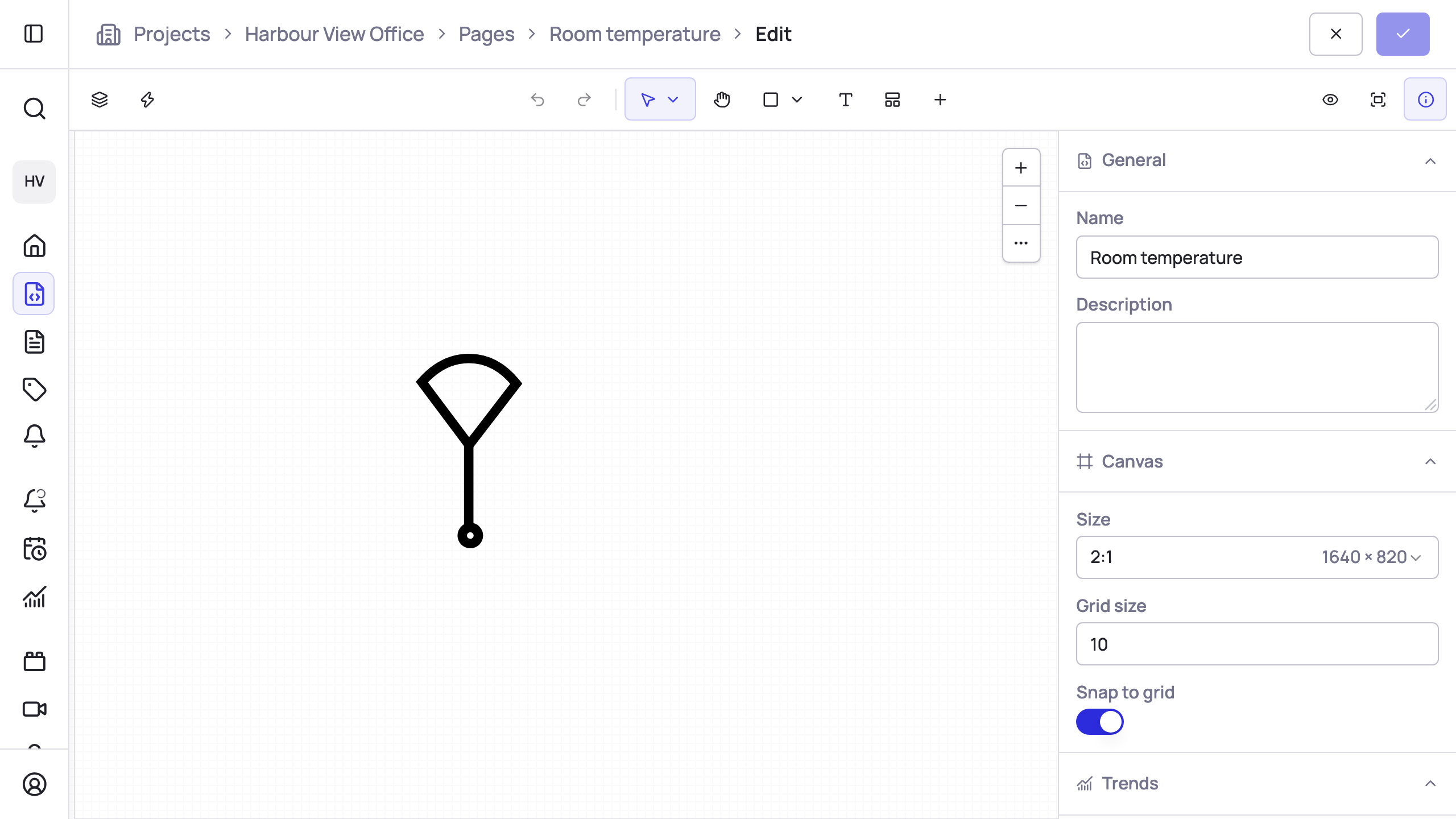
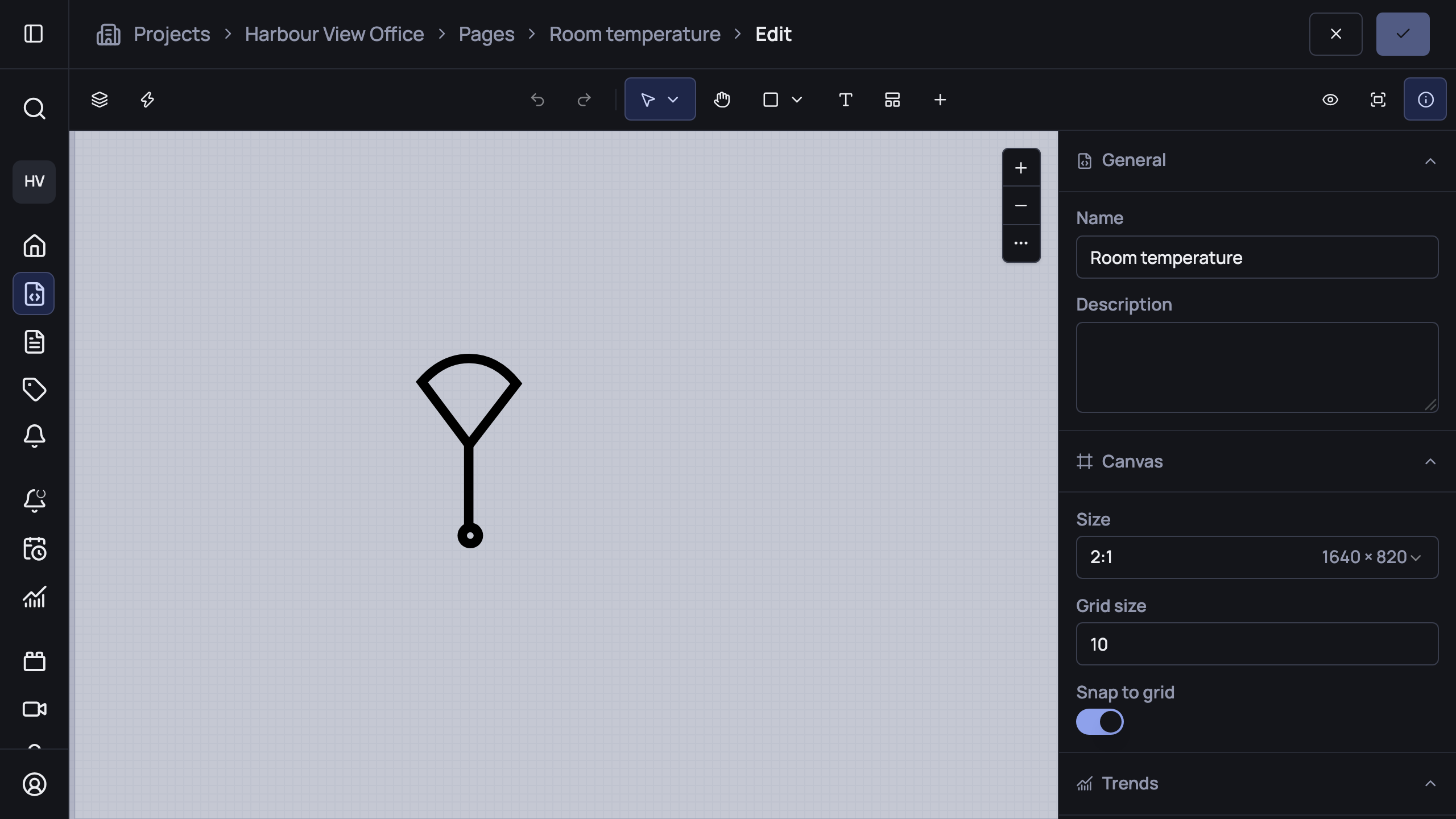
From the toolbar, open Assets and choose the Sensor symbol, then drag out a box on the canvas to place it. It stays where you drop it — this is the symbol the rest of the panel is built around. (See Equipment symbols for the full library.)
3. Add the temperature and connect it
Now the reading. Select the text tool and draw a text box next to the sensor — this will show the temperature.
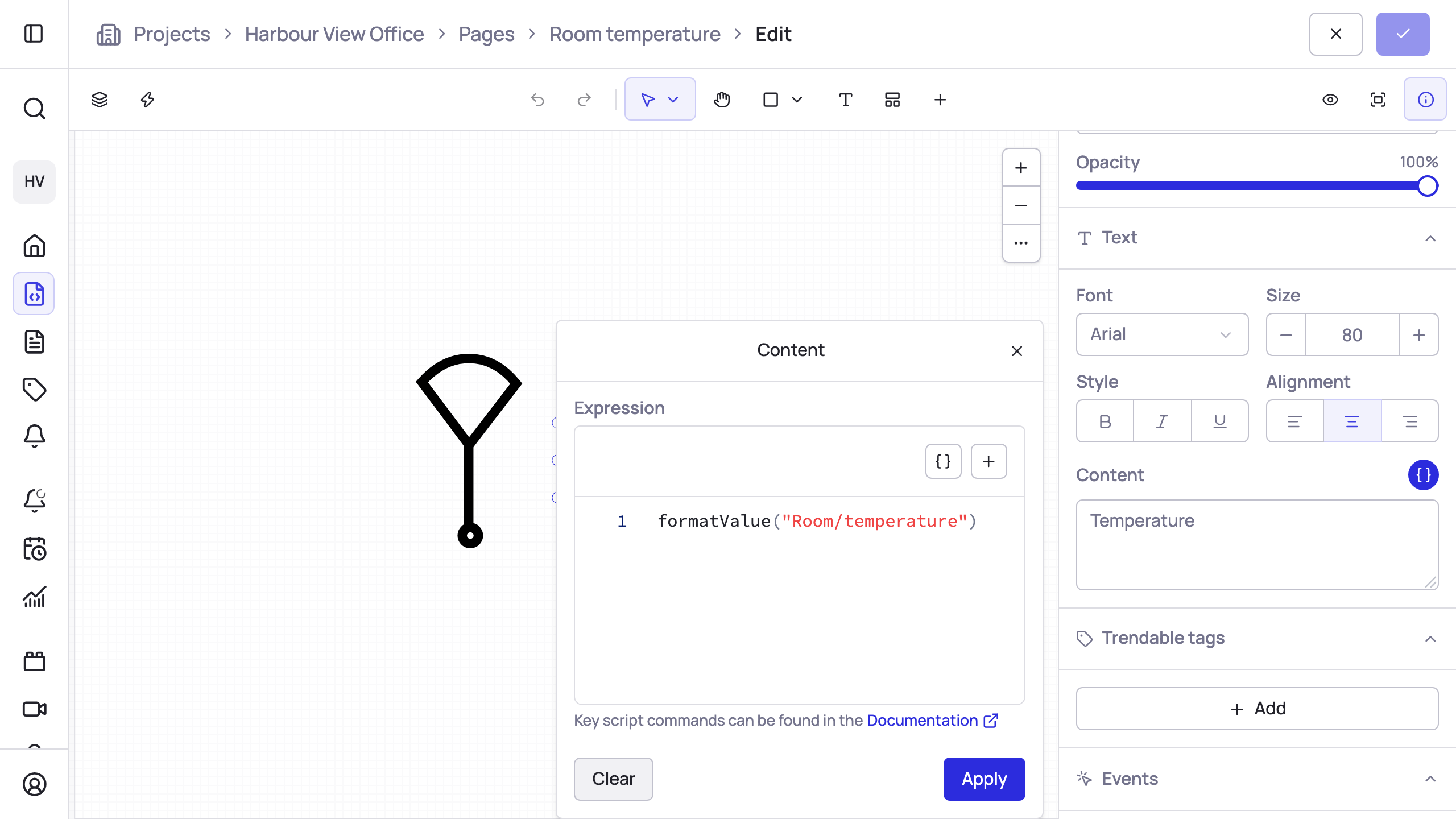
With the text selected, open the Properties panel on the right and find the
Text section. Next to the value is a small button —
click it to bind the value to a tag instead of typing fixed text. In the
expression, point
formatValue at your
temperature tag. The label now shows whatever that tag reads, formatted with its
unit.
4. See it live
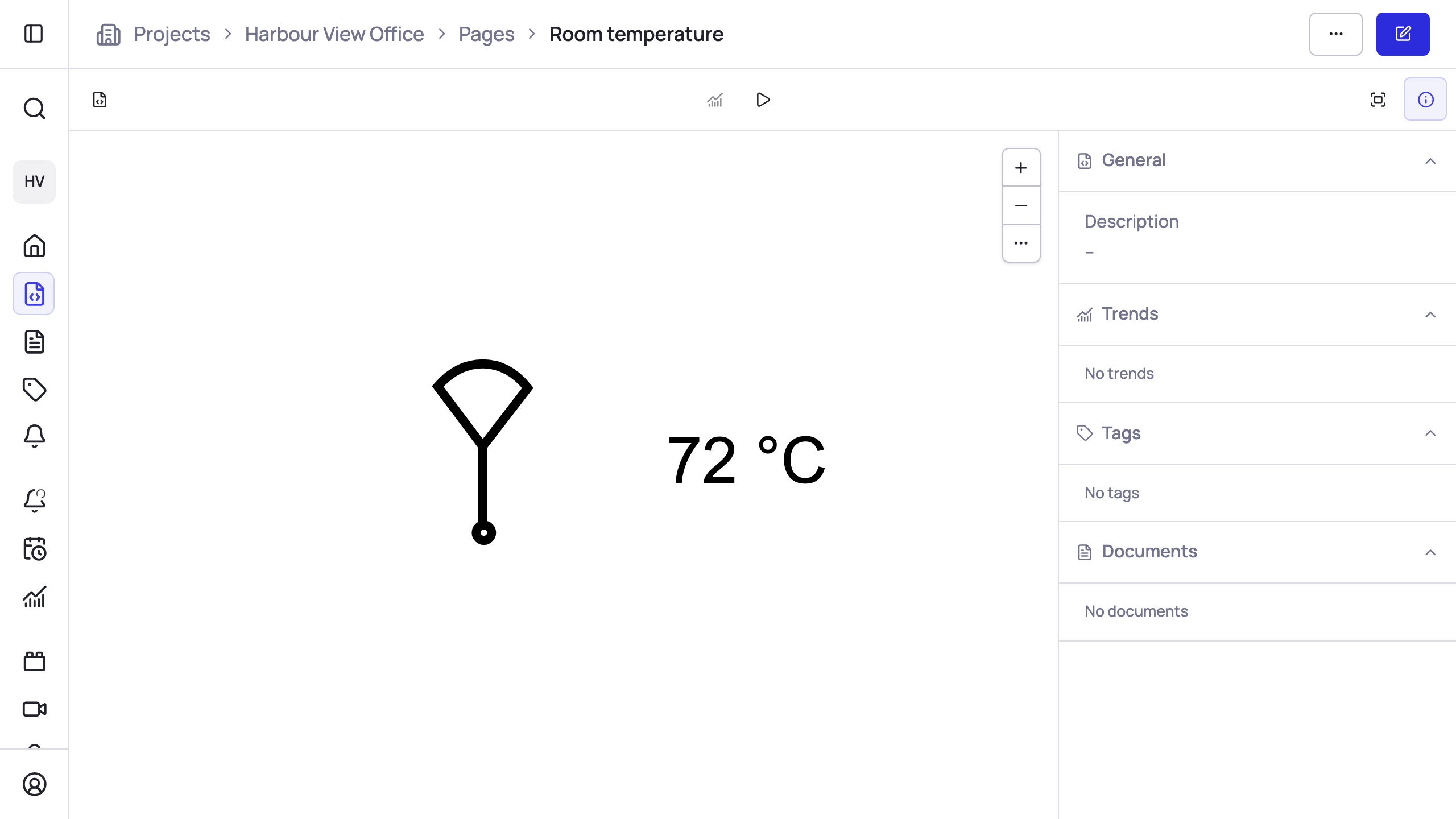
Switch to preview (the button, or press P) to see the page the way an operator does. The label now shows the room’s actual temperature next to the sensor, updating as new readings arrive.
Save the page, and it’s ready for anyone with access to open.
Where to go next
You’ve done the core loop — place, bind, view — and everything else builds on it:
- Color the sensor by state — turn it red when the room gets too hot, green when it’s comfortable.
- Add an alarm indicator — flag the sensor when a high-temperature alarm is active.
- Let operators change a value — wire a control to adjust a writable setpoint from the page.